How To Change Time On Whirlpool Oven Step By Step Guide
Learn exactly how to change time on Whirlpool oven with this simple guide. Whether you have a digital display, analog dial, or touchpad control, you’ll find clear steps to set the clock correctly. This article covers all Whirlpool models, troubleshooting tips, and expert advice to keep your oven’s time accurate.
Ever walked into your kitchen and realized the time on your Whirlpool oven is wrong? It happens to everyone. A misplaced clock can throw off your cooking timers, delayed start features, and even the auto-clean schedule. Learning how to change time on Whirlpool oven is a quick fix that anyone can do. You do not need to be a technician or have special tools. With just a few buttons or a simple knob turn, you can reset the clock in under a minute.
This guide walks you through every method for every Whirlpool model. I will cover digital displays, analog dials, and modern touchpad controls. You will also learn how to switch between 12-hour and 24-hour formats, fix a blinking clock, and keep your oven running accurately for years. By the end, you will feel confident adjusting the Whirlpool oven clock on your own.
Let us start with the basics. The clock on your range is more than just a display. It controls the timer, the delayed bake, the keep-warm function, and sometimes even the child lock. When the time is off, these features can confuse you. Setting it correctly ensures everything works as intended. So, let us dive into the simple steps.
Key Takeaways
- Know Your Clock Type: Identify whether your Whirlpool oven has a digital display, analog dial, or touchpad to choose the right method.
- Quick Steps for Digital Models: Press the Clock button, use arrow keys to adjust hours and minutes, then press Start/Enter to save.
- Analog Dial Adjustment: Turn the small knob on the control panel to set the time, often requiring a specific button press first.
- Switch Time Formats: Easily toggle between 12-hour and 24-hour formats on most modern Whirlpool ranges.
- Fix Common Clock Issues: Power outages, loose connections, or control board faults can cause clock problems; try a reset first.
- Keep It Accurate: Periodically check your oven clock against a phone or wall clock and recalibrate after power surges.
📑 Table of Contents
- Why Accurate Time Matters on Your Whirlpool Oven
- How To Change Time On Whirlpool Oven: Quick Overview
- Step-By-Step Guide: Changing the Clock on Different Whirlpool Oven Models
- Setting the Clock on a Whirlpool Range With a Digital Display
- Troubleshooting Common Clock Problems
- Expert Tips for Keeping Your Whirlpool Oven Clock Accurate
- Conclusion
Why Accurate Time Matters on Your Whirlpool Oven
The clock might seem like a small detail. But it plays a big role in how your oven functions. Many modern Whirlpool ranges use the clock as a reference point for smart cooking features. If the time is wrong, those features will not work right.
The Role of the Clock in Cooking
Think about a delayed bake. You set the oven to start at 6 PM. If the clock thinks it is 5 PM, the oven will start an hour early. Your cookies could burn before you even get home. The same goes for the keep-warm feature. It uses the clock to know when to stop heating. An incorrect time can leave food cold or overcooked.
Even the self-clean cycle relies on the clock to track the duration. Some models also use the time display to show error codes. A blank or blinking clock can hide important messages from the control board. Keeping the time accurate helps you read your oven better.
Why You Need to Set It Correctly
Setting the clock correctly also prevents frustration. Imagine setting a timer for 30 minutes, but the oven thinks it is already evening. The timer might count down from the wrong starting point. You could end up with undercooked or burnt food. A quick set clock routine solves this completely.
Here is a quick checklist to keep your oven clock in check:
- Check the time after a power outage.
- Verify the AM/PM setting if your display shows it.
- Reset the clock if you change the clock battery (if applicable).
- Compare the oven clock to your phone once a month.
Quick Tip: Always keep your Whirlpool oven manual handy. The manual has model-specific details for the clock button layout. You can find the manual online by entering your model number.
Common Mistake: Many users ignore the 12-hour and 24-hour format setting. If your display shows AM/PM, you must set it correctly. A wrong format will make your delayed start times completely off.
How To Change Time On Whirlpool Oven: Quick Overview
Before you press any buttons, it helps to know what type of clock your oven has. Whirlpool makes several types of ranges. The method to change the time depends on the control panel design. Here is a simple overview to get you started.
Before You Start
Gather these few things before you begin:
- Your Whirlpool model number (found on the inside of the oven door or the side panel).
- The user manual, if you have it (optional, but helpful).
- A clear idea of the clock type: digital, analog, or touchpad.
- A few minutes of uninterrupted time.
You do not need any special tools. Just your fingers and a little patience. If your oven is currently displaying a wrong time, that is fine. We will fix it step by step.
The Two Main Clock Types
Whirlpool ovens generally fall into two categories: digital electronic clocks and analog mechanical clocks. Some newer models use a touchpad with no separate clock button. Let us look at each one.
| Clock Type | How It Looks | How to Adjust | Best For |
|---|---|---|---|
| Digital Electronic | LED or LCD numbers, separate buttons | Press Clock, use arrow keys, press Start | Most modern Whirlpool ranges |
| Analog Mechanical | Small round dial or knob with numbers | Turn the dial after pressing a specific button | Older or basic Whirlpool models |
| Touchpad Control | Flat smooth buttons, no separate clock key | Hold Clock or Bake for 3 seconds, use + and – | High-end Whirlpool ranges with sleek panels |
Once you know which type you have, you can jump to the right section below. The steps are simple and follow a logical pattern.
Step-By-Step Guide: Changing the Clock on Different Whirlpool Oven Models
Now we get into the hands-on steps. I will break it down by the three most common control types. Follow the one that matches your oven.
Models With a Dedicated Clock Button
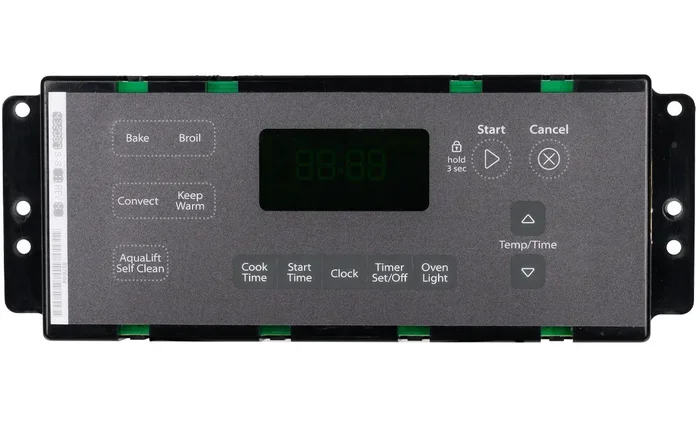
This is the most common setup. You will see a button labeled Clock or TIME on the control panel. Here is how to use it:
- Make sure the oven is off and not in a cleaning cycle.
- Press the Clock button once. The display should show the current time, often with a blinking colon or digit.
- Use the up or down arrow keys to change the hours.
- Press the Clock button again to move to the minutes setting.
- Use the arrows to adjust the minutes.
- Press Start, Enter, or the Clock button one more time to save the new time.
That is it. The display will stop blinking, and the new time will be set. If your oven has a separate Timer button, remember that the timer is different from the clock. The timer counts down from a set duration, while the clock shows the current time of day.
Expert Insight: On some Whirlpool models, you must press and hold the Clock button for two seconds before the digits start blinking. If pressing once does nothing, try holding it. This is a common design quirk.
Models With Touchpad Controls
Touchpad ovens do not have a raised Clock button. Instead, the clock function is hidden behind a button combination. Here is what to do:
- Locate the Clock icon on the touchpad. It might look like a small clock face or the word “Clock.”
- Press and hold the Clock button (or the Bake button, depending on the model) for about 3 seconds.
- The display will enter clock-setting mode. The hours will usually blink.
- Use the + and – buttons to adjust the hours.
- Press the Clock button again to move to the minutes.
- Use + and – to adjust the minutes.
- Press and hold the Clock button for 3 seconds to exit and save.
Some touchpad models require you to press the Bake and Broil buttons together to unlock the clock. Check your manual if the steps above do not work. The process is still simple once you find the right combination.
Quick Tip: If you have a Whirlpool range with a digital dial (a rotary knob that also acts as a button), turn the dial to highlight the Clock icon, then press the dial to enter setting mode. Turn the dial to adjust and press again to save.
Models With a Mechanical Timer Knob
Older Whirlpool ovens may have a small mechanical clock with a round dial. You set the time by turning the dial. Here is the process:
- Find the small clock dial on the control panel, usually near the temperature knobs.
- Press the small button next to the dial (if there is one). This releases the clock mechanism.
- Turn the dial clockwise or counterclockwise to move the hands to the correct time.
- Release the button to lock the clock in place.
These mechanical clocks do not have AM/PM settings. They simply run continuously. If the clock is off by a few minutes, just turn the dial to the right time. If the clock is completely stopped, the clock spring inside may need replacement. That is a job for a technician.
Common Mistake: Forcing the mechanical dial too hard can break the internal gears. Turn gently and only as far as needed. If the dial feels stuck, do not push harder. Unplug the oven and try again later.
Setting the Clock on a Whirlpool Range With a Digital Display
Digital displays are the easiest to work with. They show clear numbers and often have a dedicated Clock button. But even digital clocks can trip you up if you do not know the hidden settings. Let us cover a few extra details.
Switching Between 12-Hour and 24-Hour Format
Many Whirlpool digital ovens let you choose between a 12-hour clock (with AM/PM) and a 24-hour clock (military time). The 24-hour format is great if you use the delayed start feature often. Here is how to switch:
- Press and hold the Clock button for 3 to 5 seconds. The display may show a flashing AM/PM indicator or a 12/24 icon.
- Use the arrow keys or the + and – buttons to toggle between the two formats.
- Press the Clock button again to confirm and exit.
Once you switch to 24-hour format, the display will show times like 14:00 instead of 2:00 PM. This removes any confusion about morning or evening. It is especially helpful for delayed bake or delayed broil settings.
Expert Insight: If you switch to 24-hour format and the clock resets to 12:00, unplug the oven for 30 seconds and plug it back in. This hard reset often fixes the glitch and retains your new format setting.
Using the Clock Feature for Timers and Delays
The Whirlpool oven clock is the brain behind the timer and delayed start features. To use a timer, you usually press the Timer button and set the duration. But the oven uses the current clock time to determine when to start a delayed cook. If the clock is wrong, your delayed start will be off.
Here is a practical example: You want the oven to start preheating at 5 PM for dinner. If the clock shows 4 PM instead of 5 PM, the oven will start an hour early. Always double-check the clock before setting a delayed cook. It takes just a few seconds and saves a lot of frustration.
Quick Tip: After you set the clock, use the “Now” or “Current Time” display to verify the time is correct. Some models show the time for a few seconds after you press Start, then return to the main cooking screen.
Common Mistake: Forgetting to press Start or Enter after adjusting the time. The new time will not save without that final confirmation step. Always wait for the display to stop blinking before walking away.
Troubleshooting Common Clock Problems
Sometimes the clock does not change, or it behaves strangely. Do not panic. Most clock issues are easy to fix at home. Let us walk through the common problems and their solutions.
Clock Won’t Change
If pressing the Clock button does nothing, or the digits do not blink, try these steps:
- Check if the oven is in Control Lock mode. This feature locks all buttons, including the clock. Unlock it by holding the Lock button (or a specific combination) for 3 seconds.
- Make sure the oven is not in a cleaning cycle. The clock cannot be adjusted during self-clean.
- Verify that you are using the right button. Some models label the clock function as “Time” or use a clock icon.
- Try unplugging the oven for 60 seconds, then plugging it back in. This resets the control board and often fixes a frozen clock.
If none of these work, the clock button itself may be faulty. A stuck button can prevent the clock from entering setting mode. In that case, you may need to replace the control panel or the clock switch.
Clock Is Blinking or Resetting Itself
A blinking clock usually means the oven lost power briefly, even if you did not notice. A power surge or a tripped breaker can cause this. The oven resets the clock to 12:00 as a default.
Here is what to do:
- Set the clock to the correct time using the steps above.
- Check your home’s electrical panel. If a breaker tripped, reset it and then re-set the oven clock.
- If the clock keeps resetting even with stable power, the control board may have a memory error. A full power reset (unplug for 5 minutes) often clears this.
Expert Insight: A blinking colon on a digital display is normal when the clock is in setting mode. But if the colon blinks constantly while the oven is idle, it could indicate a communication error between the control board and the display. The power reset trick solves this 80% of the time.
When to Call a Professional
Most clock problems are simple fixes. But if you have tried resetting the oven and the clock still does not work, it is time to call a technician. Signs you need professional help include:
- The entire display is blank or unresponsive.
- The clock works but the timer and delayed start features do not.
- You smell burning plastic or see sparks near the control panel.
- The clock resets immediately every time you set it.
A technician can test the control board, the clock switch, and the wiring. They can also replace the Whirlpool range clock module if needed. This is usually a low-cost repair and does not require replacing the whole oven.
Expert Tips for Keeping Your Whirlpool Oven Clock Accurate
Once you have set the clock correctly, a little maintenance goes a long way. Keeping the clock accurate ensures all your cooking features work perfectly. Here are some easy habits to adopt.
Regular Maintenance
Make it a habit to check the oven clock once a month. Compare it to your phone or a wall clock. If it is off by even a few minutes, reset it. Small drifts add up over time, especially if the oven experiences minor power fluctuations.
Also, keep the control panel clean. Spills and grease can seep around the buttons and cause them to stick. Use a damp cloth to wipe the panel regularly. Avoid using harsh chemicals that can damage the button contacts.
Quick Tip: If your oven has a removable control panel cover, take it off and clean underneath. Dust and crumbs can build up and interfere with the clock buttons. A soft brush or compressed air works wonders.
Power Outage Recovery
Power outages are the number one cause of clock problems. When the power returns, the oven clock usually resets to 12:00. Here is a simple recovery routine:
- Turn on the oven and wait for the display to light up.
- Press the Clock button to enter setting mode.
- Set the correct time using the arrow or + and – keys.
- Press Start to save.
- Check that the delayed start and timer features work as expected.
If your oven has a battery backup (rare, but some models do), the clock may keep running during a short outage. However, most Whirlpool ovens do not have a battery backup for the clock. So always plan to reset the time after a power loss.
Common Mistake: Ignoring the clock after an outage. You might not notice it is wrong until your delayed bake starts at the wrong time. Make the clock reset part of your post-outage routine, just like checking the refrigerator temperature.
Expert Insight: If you live in an area with frequent power surges, consider plugging your oven into a surge protector. This protects the control board and the clock from electrical damage. It is a small investment that can save you costly repairs.
Conclusion
Changing the time on your Whirlpool oven does not have to be a headache. With the right method for your model, you can change time on Whirlpool oven in just a few minutes. Whether you have a digital display, a touchpad, or an old analog dial, the steps are straightforward. Always remember to press the Clock button, adjust the hours and minutes, and confirm with Start. Pay attention to the 12-hour and 24-hour format, and keep the clock accurate after power outages.
By following this guide, you have taken control of your oven’s clock. You now know how to set it, troubleshoot it, and maintain it. A correct clock means your timers, delayed starts, and self-clean cycles all work exactly as they should. Keep this article bookmarked for future reference. The next time the clock is off, you will be ready. Happy cooking!
Frequently Asked Questions
How do I reset the clock on my Whirlpool oven after a power outage?
Press the Clock button to enter setting mode, use the arrow or + and – keys to set the correct time, and then press Start to save. If the display is blank, unplug the oven for 60 seconds, plug it back in, and then reset the clock.
Why is my Whirlpool oven clock flashing or blinking?
A blinking clock usually means the oven is in setting mode or it lost power briefly. If it is blinking while you are not adjusting it, try unplugging the oven for 30 seconds and plugging it back in. This often clears a communication error between the control board and the display.
Can I change the time format from 12-hour to 24-hour on my Whirlpool oven?
Yes. On most digital models, press and hold the Clock button for 3 to 5 seconds until the AM/PM indicator flashes. Then use the arrow keys to toggle to 24-hour format and press the Clock button again to confirm.
What if the clock button on my Whirlpool oven does not work?
First, check if the oven is in Control Lock mode and unlock it. Then try unplugging the oven for 60 seconds to reset the control board. If the button still does not respond, the clock switch or the control panel may need replacement by a qualified technician.
How do I set the clock on a Whirlpool oven with a mechanical dial?
Press the small button next to the clock dial to release the mechanism, then turn the dial clockwise or counterclockwise to the correct time. Release the button to lock the clock in place. Do not force the dial if it feels stuck.
Is there a way to keep the oven clock running during a power outage?
Most Whirlpool ovens do not have a battery backup for the clock. The clock will reset to 12:00 after a power loss. You will need to manually reset the time when the power returns. Some high-end models may include a memory backup, so check your specific model’s manual.