How To Turn On Smart Control On Samsung Oven Easily
Turning on Smart Control on your Samsung oven is easier than you think. With just a few simple steps, you can connect your oven to Wi-Fi, download the SmartThings app, and start controlling your cooking from anywhere. This guide walks you through every step, from initial setup to using advanced smart features, so you can get the most out of your Samsung smart oven with confidence.
Have you just bought a new Samsung oven and want to explore its smart features? Or maybe you have had your oven for a while but never tried the Smart Control option. Either way, you are in the right place. Learning how to turn on Smart Control on Samsung oven is a simple process that opens up a whole new world of convenience in your kitchen.
Smart Control is one of the best features Samsung offers on its modern ovens. It lets you monitor your oven, change settings, and even start cooking from your phone. Imagine preheating your oven while you are still driving home from the grocery store. That is the kind of ease Smart Control brings to your daily life.
In this guide, we will walk you through every step. From checking your oven model to setting up the SmartThings app, we have got you covered. You do not need to be a tech expert. Just follow along, and you will be up and running in no time. Let us dive right in.
Key Takeaways
- Smart Control lets you monitor and manage your Samsung oven remotely using the SmartThings app.
- You need a stable Wi-Fi connection and a compatible Samsung account to get started.
- The setup process takes only a few minutes and requires no technical expertise.
- Smart Control features include remote preheat, temperature adjustment, and cooking mode selection.
- Common issues like connection errors can be fixed with simple troubleshooting steps.
- Regular firmware updates keep your smart oven running smoothly and securely.
- Using Smart Control can save time, energy, and improve your overall cooking experience.
📑 Table of Contents
- What Is Smart Control on a Samsung Oven?
- Things You Need Before Getting Started
- Step-by-Step Guide to Turn On Smart Control
- Setting Up the Samsung SmartThings App
- Using Smart Control Features for Better Cooking
- Troubleshooting Common Smart Control Issues
- Tips to Get the Most from Your Smart Oven
- Common Mistakes to Avoid When Setting Up Smart Control
- Final Thoughts
What Is Smart Control on a Samsung Oven?
Smart Control is a built-in feature on Samsung ovens that connects your appliance to the internet. Once connected, you can control and monitor your oven using a smartphone or tablet. This feature is part of the Samsung SmartThings ecosystem, which links all your smart home devices together.
When Smart Control is active, your oven becomes a smart kitchen appliance that responds to your commands from anywhere. You can check the current temperature, adjust cooking modes, and receive notifications when your food is ready. It is like having a personal chef assistant right in your pocket.
Key Features of Smart Control
Smart Control comes with several useful features that make cooking easier and more enjoyable. Here are some of the standout capabilities:
- Remote Preheat: Start preheating your oven before you even walk into the kitchen.
- Temperature Monitoring: Check the internal temperature of your oven in real time.
- Cooking Mode Selection: Choose between bake, broil, convection, and other modes from your phone.
- Timer and Alerts: Set timers and receive push notifications when cooking is complete.
- Energy Monitoring: Track how much energy your oven uses during each cooking session.
- Recipe Integration: Some models allow you to pull up recipes and automatically set the right temperature and time.
These features work together to make your cooking experience smoother and more efficient. Whether you are a beginner or a seasoned cook, Smart Control adds a layer of convenience that traditional ovens simply cannot match.
Things You Need Before Getting Started
Before you learn how to turn on Smart Control on Samsung oven, there are a few things you need to have ready. Gathering these items beforehand will make the setup process much faster and smoother.
Checklist Before Setup
- A Samsung oven with Smart Control capability: Not all Samsung ovens have this feature. Check your model number to confirm compatibility. Most models released after 2018 support Smart Control.
- A stable Wi-Fi network: Your oven needs a reliable internet connection to communicate with your phone. Make sure your router is nearby and working properly.
- A smartphone or tablet: You will need a device running iOS or Android to download the SmartThings app.
- A Samsung account: You need a Samsung account to sign in and sync your oven with the SmartThings platform.
- Your oven’s model number: This is usually found on a sticker inside the door frame or on the back of the oven. Keep it handy for troubleshooting.
Having these items ready ensures you will not run into any surprises during setup. If your oven model does not support Smart Control, you may need to check for firmware updates or contact Samsung support for guidance.
Step-by-Step Guide to Turn On Smart Control
Now that you have everything you need, let us get into the actual process. Learning how to turn on Smart Control on Samsung oven is straightforward and should only take about five to ten minutes.
Step 1: Turn On Your Oven
Start by making sure your oven is powered on. Plug it in if it is not already connected to a power source. Press the power button on the control panel. You should see the display light up. If your oven has a digital display, it is ready for the next step.
If your oven does not turn on, check the circuit breaker. Sometimes a tripped breaker can cut power to the appliance. Once the oven is on and the display is active, move to the next step.
Step 2: Access the Settings Menu
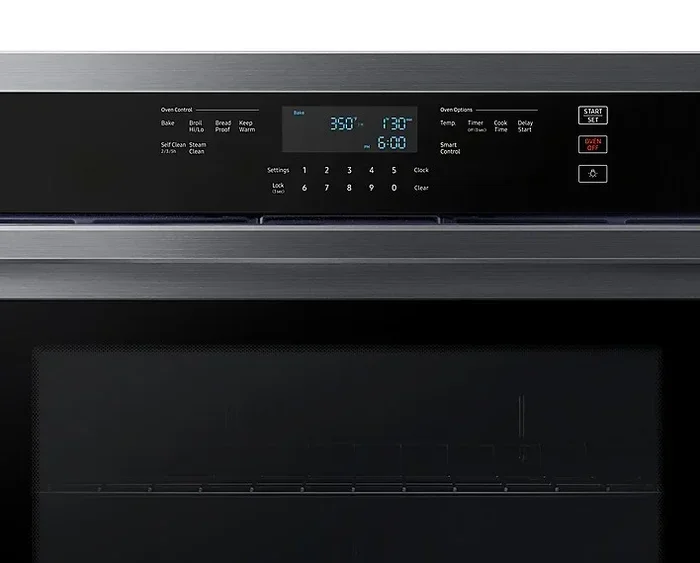
On your oven’s control panel, look for the Settings or Menu button. Press it to open the settings options. Use the dial or touchscreen to navigate through the menu. You are looking for an option labeled Smart Control, Network Settings, or Wi-Fi Setup.
Different Samsung oven models may have slightly different menu layouts. If you cannot find the Smart Control option, try looking under Network or Connection settings. Some models may label it as “Smart Home” or “Connected Home.”
Step 3: Connect to Your Wi-Fi Network
Once you find the Wi-Fi or network settings, select your home Wi-Fi network from the list. Enter your Wi-Fi password using the oven’s control panel or dial. Make sure you type the password correctly, as passwords are case-sensitive.
After entering the password, wait for the oven to connect. You should see a confirmation message on the display. Some ovens will show a Wi-Fi icon in the corner of the screen once connected. If the connection fails, double-check your password and try again.
Step 4: Enable Smart Control
With the Wi-Fi connection established, go back to the main Settings menu. Look for the Smart Control toggle or switch. Press it to turn Smart Control on. The oven may take a few seconds to activate the feature.
You might see a prompt asking you to agree to the terms and conditions. Read through them and accept to proceed. Once Smart Control is enabled, your oven is now connected to the Samsung SmartThings cloud server.
Step 5: Verify the Connection
To make sure everything is working, check the SmartThings app on your phone. Your oven should appear in the list of connected devices. If it does not show up right away, give it a minute or two. Sometimes it takes a moment for the app to detect a new device.
If your oven still does not appear, try restarting both your oven and your phone. Turn off the oven, wait 30 seconds, and turn it back on. Then reopen the SmartThings app and refresh the device list. This simple trick often resolves connection issues.
Setting Up the Samsung SmartThings App
The SmartThings app is the brain behind your Samsung smart oven. It is the tool you will use every day to control and monitor your appliance. Setting it up correctly is just as important as turning on Smart Control on the oven itself.
Downloading and Installing the App
Go to the App Store on your iPhone or the Google Play Store on your Android device. Search for “SmartThings” and download the official app from Samsung Electronics. The app is free to download and use. Once installed, open it and sign in with your Samsung account.
If you do not have a Samsung account yet, you can create one right within the app. It only takes a minute. You will need an email address and a password. Make sure to use the same Samsung account that is linked to your oven.
Adding Your Oven to the App
After signing in, tap the “Add Device” button on the home screen. The app will scan for nearby Samsung devices. Your oven should appear in the list of detected devices. Tap on it to begin the pairing process.
Follow the on-screen instructions to complete the pairing. You may need to confirm a pairing code on both the oven display and your phone. Once paired, your oven will appear in the SmartThings dashboard, and you can start controlling it right away.
Customizing Your Smart Settings
Once your oven is connected to the SmartThings app, take some time to explore the settings. You can rename your oven, set up notifications, and create automation routines. For example, you can set your oven to preheat automatically every evening at 5 PM. These small customizations make a big difference in your daily routine.
Using Smart Control Features for Better Cooking
Now that Smart Control is turned on and the app is set up, let us talk about how to actually use these features to improve your cooking. Knowing how to turn on Smart Control on Samsung oven is only half the battle. Using it effectively is what really makes a difference.
Remote Preheat and Temperature Control
The remote preheat feature is one of the most popular Smart Control functions. When you are on your way home, open the SmartThings app and select your oven. Choose the preheat option and set your desired temperature. By the time you walk through the door, your oven is already hot and ready to go.
You can also adjust the temperature remotely if you realize you set it wrong. Simply open the app, change the temperature, and the oven will update instantly. This feature is especially helpful when you are multitasking in the kitchen and do not want to keep opening the oven door.
Monitoring Your Cooking
Smart Control allows you to keep an eye on your food even when you are not in the kitchen. The app shows the current oven temperature and cooking time in real time. Some Samsung models even have a built-in camera that lets you see inside the oven through the app.
This is incredibly useful when you are hosting a dinner party or cooking multiple dishes at once. You can check on everything from your living room or even from outside the house. It gives you peace of mind and prevents overcooking or undercooking.
Using Smart Recipes
Many newer Samsung ovens come with a built-in recipe library in the SmartThings app. You can browse recipes, select one you like, and the oven will automatically set the right temperature and cooking time. All you have to do is place your food inside and press start.
This feature is a game-changer for home cooks who are still learning the ropes. It removes the guesswork from baking and roasting. You get consistent, great-tasting results every single time.
Troubleshooting Common Smart Control Issues
Even with the best technology, things can sometimes go wrong. If you are having trouble with Smart Control, do not worry. Most issues are easy to fix. Here are some common problems and their solutions.
Oven Not Connecting to Wi-Fi
If your oven keeps failing to connect to Wi-Fi, start by checking your router. Make sure it is working and that other devices can connect to the same network. Restart your router by unplugging it for 30 seconds and plugging it back in.
Next, try moving your router closer to the oven. Wi-Fi signals can weaken over distance, especially if there are thick walls in between. If the problem persists, try resetting the oven’s network settings and connecting again from scratch.
SmartThings App Not Detecting the Oven
If the app cannot find your oven, make sure both your phone and the oven are on the same Wi-Fi network. Sometimes phones connect to a 5GHz network while the oven connects to a 2.4GHz network. These are different networks, and devices on separate bands cannot communicate with each other.
Try turning off your phone’s mobile data and connecting only through Wi-Fi. Also, make sure the SmartThings app is updated to the latest version. Outdated apps can sometimes cause compatibility issues.
Smart Control Feature Not Responding
If you turn on Smart Control but the feature does not respond, try a power cycle. Turn off the oven, unplug it for two minutes, and plug it back in. This clears any temporary glitches in the system.
You should also check for firmware updates. Samsung regularly releases updates that fix bugs and improve performance. Open the SmartThings app, go to your oven’s settings, and check for available updates. Installing the latest firmware often resolves responsiveness issues.
Tips to Get the Most from Your Smart Oven
Now that you know how to turn on Smart Control on Samsung oven and use its features, here are some expert tips to help you get the most out of your smart oven.
Keep Your Firmware Updated
Samsung regularly releases firmware updates that add new features and fix bugs. Make it a habit to check for updates once a month. An up-to-date oven runs faster, more reliably, and with better security.
Use Voice Commands
If you have a smart speaker like Amazon Echo or Google Home, you can pair it with SmartThings. This lets you control your oven using voice commands. Simply say, “Turn on the oven to 350 degrees,” and the oven will respond. It is a hands-free cooking experience that adds another layer of convenience.
Set Up Notifications
Take advantage of the notification feature in the SmartThings app. Set alerts for when your food is done, when the oven reaches the target temperature, or when there is a problem. These notifications keep you informed and help prevent cooking mishaps.
Explore Energy-Saving Modes
Smart Control includes energy-saving features that can lower your electricity bill. Use the eco mode when cooking smaller meals or when you do not need the full oven capacity. These small adjustments add up over time and are better for the environment too.
Clean Your Oven Regularly
A clean oven performs better and lasts longer. Smart ovens often have self-cleaning features that you can activate through the app. Regular cleaning also ensures accurate temperature readings, which is essential for great cooking results.
Common Mistakes to Avoid When Setting Up Smart Control
Setting up Smart Control is generally smooth, but a few common mistakes can cause frustration. Here is what to watch out for.
- Skipping the firmware update: Always check for updates before setting up Smart Control. Outdated software can cause connection problems.
- Using the wrong Wi-Fi band: Make sure your phone and oven are on the same network band (2.4GHz or 5GHz).
- Entering the wrong Wi-Fi password: Double-check your password carefully. A single wrong character will prevent connection.
- Placing the router too far away: Weak Wi-Fi signals lead to dropped connections. Keep your router in the same room or nearby.
- Not restarting the oven after setup: A simple restart after enabling Smart Control can resolve many issues. Do not skip this step.
Avoiding these mistakes will save you time and frustration. A smooth setup means you can start enjoying your smart oven features right away.
Final Thoughts
Learning how to turn on Smart Control on Samsung oven is one of the best things you can do for your kitchen. It transforms your oven from a simple appliance into a smart, connected cooking companion. The setup process is quick, the features are powerful, and the convenience is unmatched.
Once you experience the ability to preheat your oven remotely, monitor your food from anywhere, and use smart recipes, you will wonder how you ever cooked without it. Smart Control brings your kitchen into the modern age and makes everyday cooking a little bit easier and a lot more fun.
Take the time to set everything up properly. Follow the steps in this guide, troubleshoot any issues that come up, and explore all the features available to you. Your Samsung oven is a smart investment, and Smart Control is the key to unlocking its full potential. Enjoy your smarter, more connected cooking experience.
Frequently Asked Questions
Can I turn on Smart Control on any Samsung oven?
Not all Samsung ovens support Smart Control. Most models released after 2018 do, but you should check your specific model number to confirm. You can find compatibility information in your oven’s user manual or on the Samsung website.
Do I need a SmartThings account to use Smart Control?
Yes, you need a Samsung account that is linked to the SmartThings app. This account allows your oven to connect to the SmartThings cloud and sync with your phone. Creating an account is free and takes only a minute.
Can I control my Samsung oven when I am not at home?
Absolutely. As long as your oven is connected to Wi-Fi and Smart Control is turned on, you can access and control it from anywhere using the SmartThings app. You just need an internet connection on your phone.
Why is my Samsung oven not showing up in the SmartThings app?
This usually happens when the oven and your phone are on different Wi-Fi networks or bands. Make sure both are connected to the same 2.4GHz or 5GHz network. Restarting both the oven and the app often resolves this issue as well.
Is Smart Control available on the Samsung oven control panel?
Yes, Smart Control can be activated directly from the oven’s control panel. You do not need the app to turn it on, but the app gives you much more control and flexibility. The panel is useful for basic settings, while the app unlocks advanced features.
Does using Smart Control increase my electricity bill?
Not necessarily. Smart Control includes energy-monitoring features that can actually help you save electricity. By tracking your oven’s energy usage and using eco modes, you can reduce your overall energy consumption over time.
=== CONCLUSION ===
Turning on Smart Control on your Samsung oven is a simple process that pays off big time. With a stable Wi-Fi connection, the SmartThings app, and this step-by-step guide, you can transform your cooking experience in just minutes. From remote preheat to real-time monitoring, Smart Control puts the power of a professional kitchen right at your fingertips.
Remember to keep your firmware updated, troubleshoot any issues calmly, and explore all the features your oven has to offer. The more you use Smart Control, the more you will appreciate how much it simplifies your daily cooking routine. Your Samsung smart oven is ready to work smarter for you. All you have to do is turn it on.