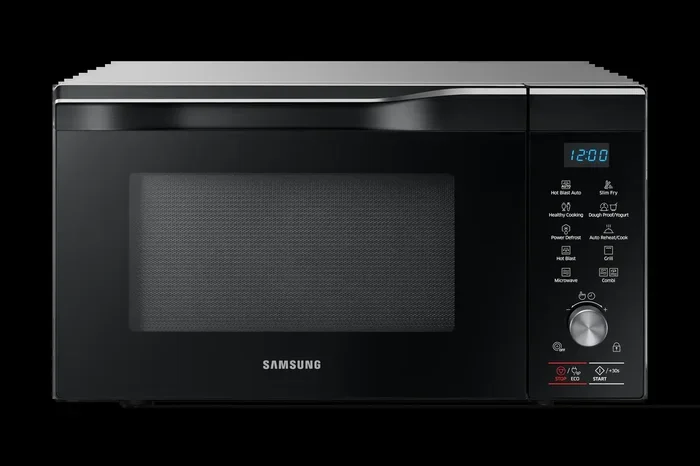
Does Samsung Oven Turn Off After Cook Time Automatically
Yes, Samsung ovens are designed to turn off automatically after the set cook time ends. Most Samsung models come with built-in auto-off and timer features that help keep your kitchen safe and energy-efficient. Understanding how these settings work can save you from worrying about leaving the oven on.
Do you ever set your oven and forget it? It happens to all of us. You pop something in, set a time, and get busy with other things. Then a nagging thought creeps in. Does my Samsung oven turn off after the cook time? The good news is yes, it does. Samsung ovens are built with automatic shut-off features that protect your home and save energy. In this guide, we will walk you through exactly how this works, what to watch for, and how to get the most out of your Samsung oven timer settings.
Whether you own a Samsung convection oven, a microwave oven combo, or a smart Samsung range, this article covers it all. We will break down the auto-off mechanism, explain the different timer options, and share practical tips to keep your kitchen running smoothly. No jargon. No fluff. Just clear, helpful information you can use right away.
Key Takeaways
- Samsung ovens auto-shut off: Most models turn off automatically once the cook time completes.
- Timer settings are easy to use: You can set a sleep timer or a cook timer through the control panel.
- Safety features prevent accidents: Auto-off and child lock options add an extra layer of protection.
- Smart ovens offer more control: Samsung Smart ovens connect to the SmartThings app for remote monitoring.
- Common mistakes can cause issues: Not setting the timer correctly or ignoring error codes can lead to problems.
- Energy savings are real: Automatic shut-off reduces wasted electricity and keeps your home safer.
- Manual override is available: You can always turn the oven off manually if needed.
📑 Table of Contents
- How Does the Samsung Oven Auto-Off Feature Work?
- Samsung Oven Timer Settings Explained
- Safety Features of Samsung Ovens
- Samsung Smart Oven Features and Connectivity
- Common Mistakes That Affect the Auto-Off Feature
- Energy Efficiency and the Auto-Off Feature
- Troubleshooting: What to Do When the Oven Does Not Turn Off
- Expert Tips for Using Your Samsung Oven Timer
- Frequently Asked Questions
- Final Thoughts
How Does the Samsung Oven Auto-Off Feature Work?
The auto-off feature on Samsung ovens is designed with your safety in mind. When you set a cook time, the oven tracks the countdown. Once the time runs out, the oven powers down automatically. This prevents your oven from running endlessly and reduces fire hazards. Let us look at how this works in detail.
Built-In Timer and Countdown System
Samsung ovens use a digital control panel to manage cook times. You enter the desired time using the number pad or touch controls. The oven starts counting down as soon as you press start. When the timer hits zero, the heating elements shut off. The oven may beep to alert you. Some models display a notification on the screen too.
This system works for bake, broil, and convection modes. It also applies to microwave functions on Samsung combo units. The auto-off is not a manual switch you need to remember. It is built into the oven’s programming. You do not need to do anything extra.
What Happens When the Timer Reaches Zero?
When the cook time ends, the Samsung oven follows a simple sequence. First, the heating elements turn off. Next, the fan may run for a short time to cool down the interior. Finally, the display returns to the standby mode. Your oven is now completely off and safe to leave unattended.
Some Samsung models keep the interior light on for a few minutes after shut-off. This lets you check on your food without opening the door. The door lock may also release automatically on certain models. Always refer to your specific model’s user manual for exact details.
Samsung Oven Timer Settings Explained
Samsung ovens offer several timer options beyond the basic cook time. Understanding these can help you use your oven more efficiently. Let us explore the different timer features available.
Cook Timer vs. Sleep Timer
Many people confuse the cook timer with the sleep timer. They serve different purposes. The cook timer controls the actual cooking duration. It turns the oven on and off based on the time you set. The sleep timer is different. It sets a delay before the oven starts. You might use a sleep timer if you want your oven to preheat and start cooking at a later time.
Here is a quick comparison of the two:
- Cook Timer: Controls how long the oven runs. Starts immediately when you press start. Turns off when time is up.
- Sleep Timer: Delays the start of cooking. Lets you set a future start time. Useful for meal prep and scheduled cooking.
Delayed Start Feature
The delayed start feature lets you program your Samsung oven to begin cooking hours later. This is great for meal planning. You can prep ingredients in the morning and set the oven to cook dinner while you are at work. The oven will not start until the delayed time arrives. And yes, it will still auto-shut off when the cook time ends.
To use this feature, you typically hold the timer button and enter the desired delay time. Then set your cook time as usual. The oven will wait until the delay period passes before beginning. Always double-check that the delayed start time is correct before walking away.
Keep Warm Function
Some Samsung ovens include a keep warm function. This is not the same as the cook timer. The keep warm setting maintains a low temperature after cooking ends. It keeps food warm without overcooking it. However, the keep warm function has its own time limit. Most Samsung models will auto-shut off the keep warm mode after a set period, usually around 30 minutes to 2 hours.
This is another layer of the auto-off system. Even if you use keep warm, your Samsung oven will not stay on forever. It is designed to protect your food and your home.
Safety Features of Samsung Ovens
Safety is a top priority for Samsung when designing their ovens. The auto-off feature is just one part of a broader safety system. Let us look at the key safety features that come with most Samsung models.
Child Lock and Oven Lock
Samsung ovens often include a child lock feature. This prevents little ones from accidentally turning the oven on or changing settings. The child lock disables the control panel buttons. Only adults can unlock and operate the oven. This is especially helpful in busy households with young children.
The oven lock feature works differently. It locks the oven door during high-temperature operations like self-cleaning. The door cannot be opened until the oven cools to a safe temperature. Both features add an important layer of protection for your family.
Auto Shut-Off for Unattended Cooking
Leaving the oven on unattended is one of the leading causes of home fires. Samsung addresses this concern with the auto shut-off feature. If you forget to turn off the oven, the system does it for you. The oven will power down once the cook time is complete. Some models also have a maximum run time limit. If the oven runs for an extended period without a set time, it may shut off as a safety precaution.
Here are some quick tips to make the most of this safety feature:
- Always set a cook time, even for short cooking sessions.
- Do not rely on the auto-off if you can be present to monitor the oven.
- Check that the timer is running before walking away.
- Use the sleep timer for scheduled cooking rather than leaving the oven on all day.
- Listen for the beep alert at the end of the cook time.
Error Codes and Alerts
Samsung ovens display error codes when something goes wrong. These codes help you troubleshoot issues quickly. If your oven is not turning off as expected, check the display for any error messages. Common codes like E1 or E2 may indicate a control panel issue. A quick reset often resolves these problems. Unplug the oven for 30 seconds and plug it back in. If the issue persists, contact Samsung support.
Samsung Smart Oven Features and Connectivity
Samsung has embraced smart home technology, and their ovens are no exception. Smart ovens offer enhanced control and monitoring options. Let us explore what makes Samsung smart ovens stand out.
SmartThings App Integration
The Samsung SmartThings app lets you control your oven from your phone. You can start, stop, and monitor cooking remotely. The app also sends notifications when your cook time ends. This means you will know exactly when your food is ready. And if you forget to turn off the oven, you can do it from the app.
The SmartThings integration adds a layer of convenience that traditional ovens cannot match. You can set timers, adjust temperatures, and check the oven status from anywhere with an internet connection. It is especially useful for people who spend a lot of time away from the kitchen.
Voice Control Compatibility
Many Samsung smart ovens work with voice assistants like Bixby, Alexa, and Google Assistant. You can use voice commands to set timers, start cooking, and check remaining time. Voice control makes it even easier to manage your oven without touching the panel. Just say, “Hey Bixby, set the oven timer for 30 minutes,” and you are done.
Voice commands also let you check if the oven is still running. Ask, “Is the oven still on?” and the assistant will confirm. This is a great way to double-check before leaving the house.
Common Mistakes That Affect the Auto-Off Feature
Even with a reliable auto-off system, certain mistakes can cause issues. Understanding these pitfalls helps you avoid frustration and keeps your oven running safely.
Not Setting the Cook Time Properly
The most common mistake is not setting the cook time at all. If you only set the temperature and press start without a timer, the oven will stay on until you manually turn it off. Always enter a cook time before starting the oven. This ensures the auto-off feature activates when the time is up.
Ignoring the Beep Alert
Samsung ovens beep when the cook time ends. Some people find the beep annoying and turn it off. But the beep serves an important purpose. It reminds you that the oven has shut off or is about to. If you silence the alert, you might forget to check on your food or confirm the oven is off.
Using the Wrong Mode
Different modes behave differently on Samsung ovens. The convection mode, bake mode, and broil mode all have their own timer settings. Make sure you are using the correct mode for what you are cooking. Using the wrong mode can lead to uneven cooking or unexpected behavior with the auto-off system.
Overloading the Oven
Placing too much food in the oven can affect cooking performance. It may also trigger safety mechanisms that delay or prevent the auto-off. Samsung ovens are designed for a specific capacity. Respecting that limit ensures all features work as intended.
Energy Efficiency and the Auto-Off Feature
The auto-off feature on Samsung ovens does more than protect your home. It also saves energy. An oven that runs indefinitely wastes electricity and increases your utility bills. The automatic shut-off ensures the oven only runs for as long as needed.
Here are some ways the auto-off feature helps with energy efficiency:
- Prevents wasted electricity: The oven stops drawing power once the cook time ends.
- Reduces heat buildup: A cooled oven does not add unwanted heat to your kitchen.
- Extends appliance life: Less continuous use means less wear on heating elements and fans.
- Lowers carbon footprint: Using only the energy you need is better for the environment.
If you are serious about energy savings, consider pairing the auto-off feature with the delayed start option. This lets you cook during off-peak energy hours, which can reduce electricity costs even further.
Troubleshooting: What to Do When the Oven Does Not Turn Off
In rare cases, a Samsung oven may not turn off as expected. This can be alarming, but most issues are easy to fix. Let us walk through some common troubleshooting steps.
Step 1: Check the Timer Setting
First, confirm that a cook time was actually set. It sounds simple, but it is easy to overlook. Navigate to the timer section on the control panel. Make sure the countdown is active and not paused. If no time was set, the oven will not auto-shut off.
Step 2: Perform a Power Reset
A power reset often resolves minor electronic glitches. Unplug the oven from the wall outlet. Wait at least 30 seconds. Plug it back in and reconfigure your settings. This clears the control panel memory and resets the auto-off system.
Step 3: Check for Error Codes
Look at the display panel for any error codes. Write down the code and search for it in your Samsung oven manual. Most error codes have clear explanations and recommended fixes. If the manual does not help, contact Samsung customer support for guidance.
Step 4: Contact Professional Support
If none of the above steps work, it is time to call in the experts. Do not attempt to open the oven or repair internal components yourself. Contact Samsung service or a certified technician. They can diagnose the issue safely and get your oven back to working order.
Expert Tips for Using Your Samsung Oven Timer
Getting the most out of your Samsung oven timer comes down to a few smart habits. Here are some expert tips to help you cook with confidence.
- Always set a timer: Even for short tasks like reheating leftovers. It builds a habit and ensures the auto-off works every time.
- Use the SmartThings app: Remote monitoring adds peace of mind, especially when you are busy with other tasks.
- Clean the control panel regularly: Grease and grime can make buttons unresponsive. A gentle wipe with a damp cloth keeps everything working smoothly.
- Update your oven firmware: Samsung occasionally releases software updates that improve timer accuracy and auto-off performance. Check the SmartThings app for updates.
- Use the oven light: Instead of opening the door, use the interior light to check on food. This maintains heat and cooking consistency.
- Pair cook time with delayed start: For meal prep, combine both features to have hot meals ready when you need them.
Frequently Asked Questions
Will my Samsung oven turn off by itself after the timer ends?
Yes, most Samsung ovens are designed to turn off automatically once the set cook time expires. The heating elements shut off, and the oven returns to standby mode. This is a built-in safety feature across nearly all Samsung oven models. Always make sure you have set a cook time for this feature to activate.
Can I manually turn off my Samsung oven before the timer ends?
Absolutely. You can turn off your Samsung oven at any time by pressing the off button or cancel button on the control panel. The oven will stop heating immediately. The fan may continue to run briefly to cool down the interior. This manual shut-off works regardless of whether a timer is active.
What is the difference between the cook timer and the sleep timer on a Samsung oven?
The cook timer controls how long the oven runs and starts immediately. The sleep timer delays when the oven begins cooking. You set the sleep timer for a future start time, and the oven will not activate until that time arrives. Both timers support the auto-off feature once the cook time completes.
Does the Samsung SmartThings app show if the oven is still on?
Yes, the SmartThings app provides real-time status updates for your Samsung smart oven. You can see whether the oven is currently running, the remaining cook time, and the set temperature. The app also sends push notifications when the cook time ends. This makes it easy to monitor your oven from anywhere.
Why is my Samsung oven not turning off after the cook time?
If your Samsung oven is not turning off, first check that a cook time was properly set. Then try a power reset by unplugging the oven for 30 seconds. Look for any error codes on the display panel. If the problem continues, contact Samsung customer support or a certified technician for professional help.
Do Samsung microwave ovens also have an auto-off feature?
Yes, Samsung microwave ovens include an auto-off feature similar to their full-size oven counterparts. The microwave will stop running when the set cook time ends. Some models also have a safety lock that prevents the microwave from running with the door open. Always refer to your specific model’s manual for detailed instructions.
Final Thoughts
The answer to the question “Does Samsung oven turn off after cook time automatically” is a reassuring yes. Samsung has built robust auto-off and timer features into their ovens to keep your home safe and your energy bills low. From the basic cook timer to the advanced SmartThings app integration, these features work together to give you peace of mind.
Understanding how your Samsung oven operates makes a big difference. Set your cook time every time you use the oven. Use the delayed start and keep warm features wisely. Keep an eye on error codes and perform regular resets when needed. These simple habits ensure your oven runs safely and efficiently for years to come.
Take a few minutes today to review your oven’s timer settings and explore the features available on your model. A little knowledge goes a long way. Your Samsung oven is a powerful kitchen tool, and with the right understanding, you can use it with confidence and ease.